DH · How-to guide
How to use the Coach Portal
Click here, do this, done. Green boxes = the system does it for you.
1 · Pre-assessment
2 · Review
3 · Assess
4 · Client file
5 · Check-ins
6 · Advice
7 · Handover
8 · Physio
1
The pre-assessment sends itself
Nothing to do
(almost)
(almost)
Automatic
When a client books an assessment, they automatically receive the pre-assessment link. You send nothing, chase nothing.
!
Only exception — a walk-in who hasn't filled it in (rare): portal home → tap Copy pre-assessment link → send it to them.

Submitted = filed
Client file created · 17 symptom clusters scored · appears under “To review”
2
Review before the session
Before assessment
day · ~10 min
day · ~10 min
1
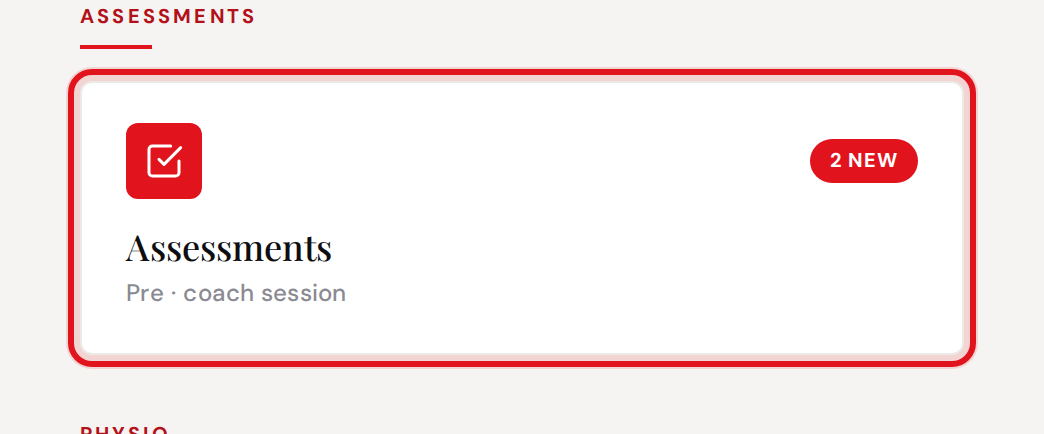
Tap Assessments on the portal home — the badge counts new submissions.
2
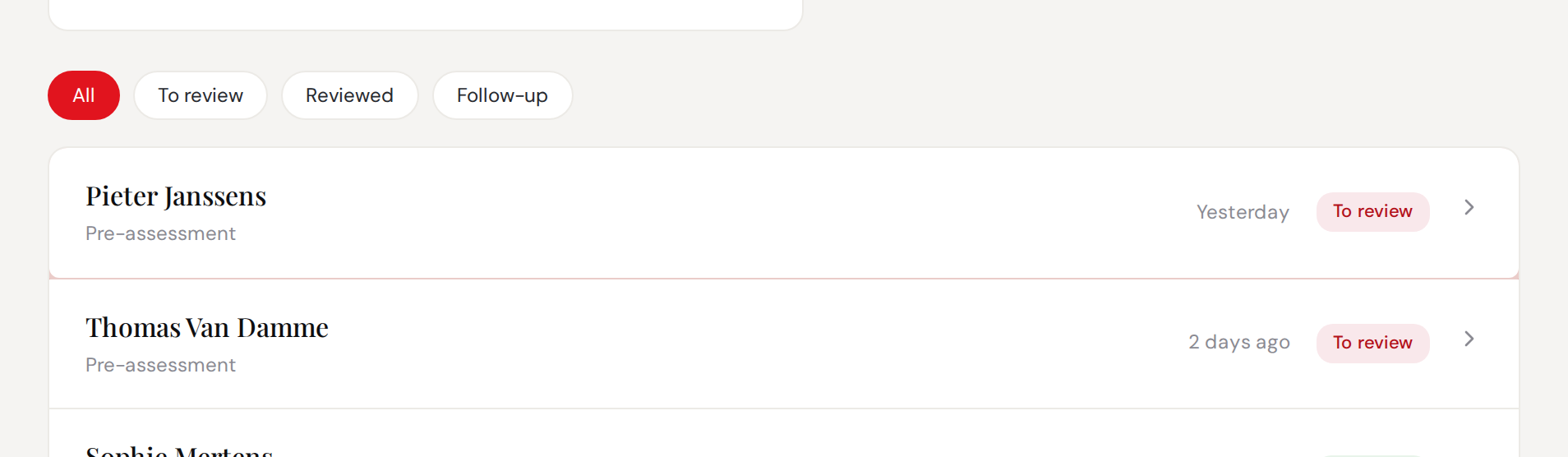
Open anyone marked “To review”.
3
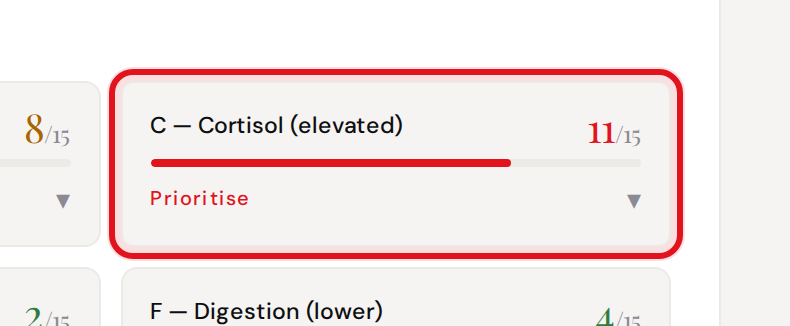
Scan the clusters. Red = dig here. Tap a cluster to see the answers behind the score.
Leave with a hypothesis: what you'd coach first, second — and what you'd leave for now.
3
Run the in-person assessment
During the
assessment hour
assessment hour
1
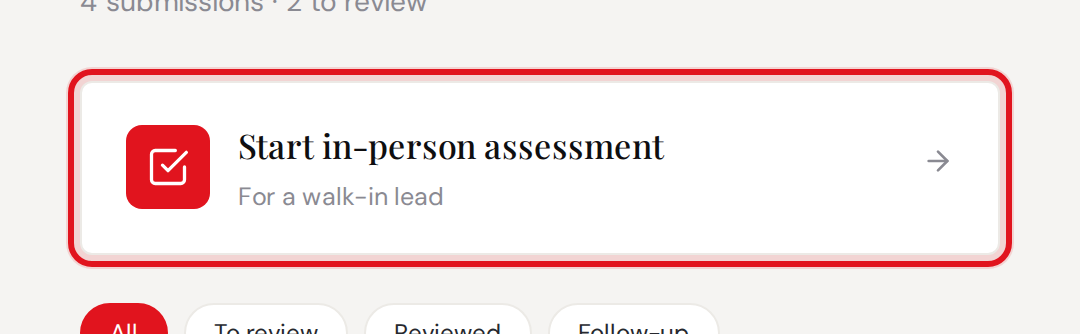
Tap Start in-person assessment — from the Assessments page or the client's file.
2
The client is pre-selected. Fill sections 1–6 as you go: scan, movement screens, Cooper, verdict, package.
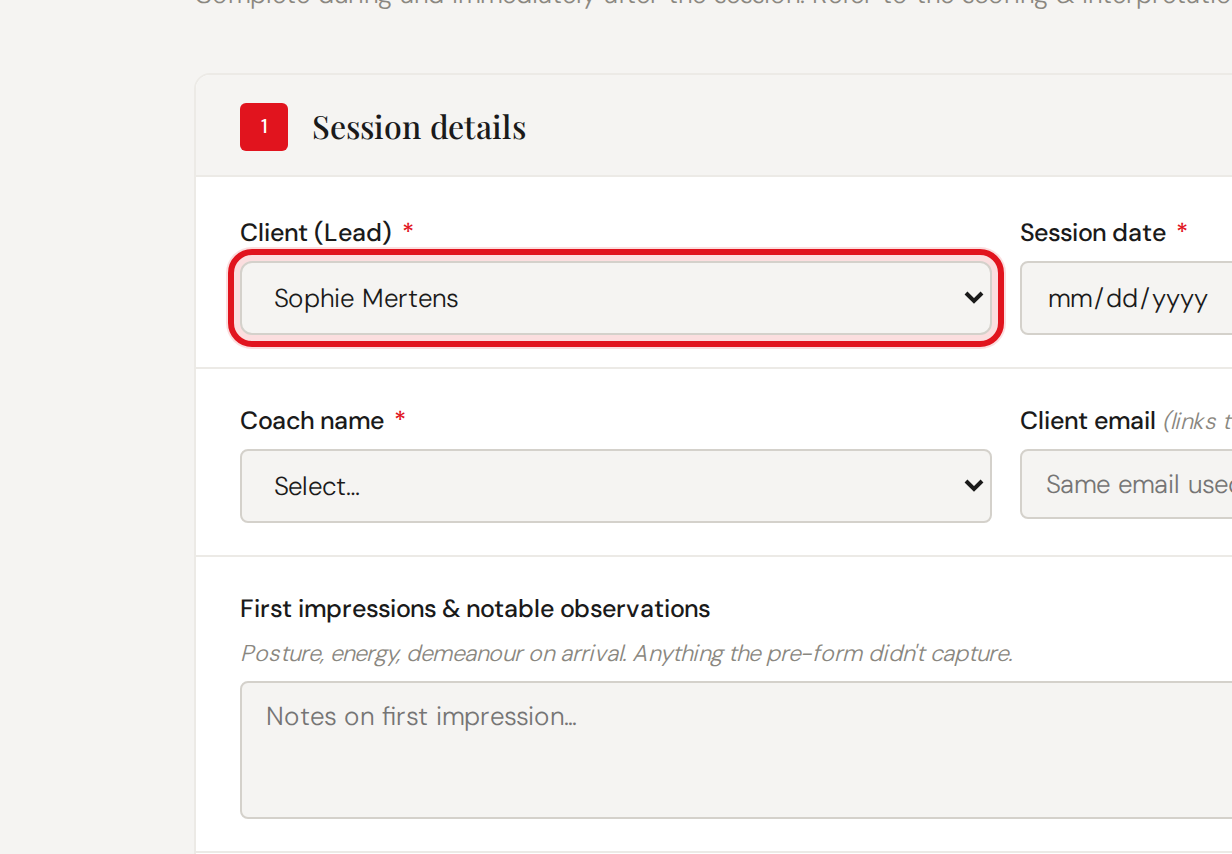
Submit once. Done.
Use the same email as their pre-assessment — that's what links the records.
Automatic
On submit: client → Active and assigned · records linked · pre-assessment Reviewed · email to the coach with Dan & Jen in copy.
4
Open a client's file
Any time — it's the
source of truth
source of truth
1
My clients → tap a name. Tabs filter: leads, yours, everyone.
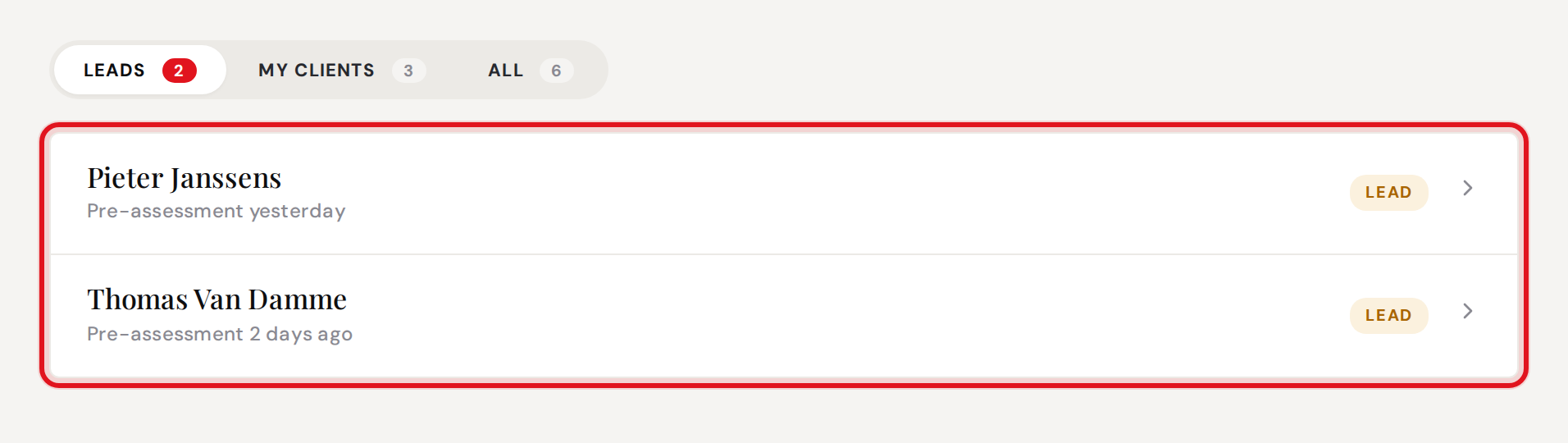
2
Top of the file = this week. Trends and flags first; recommendations and both assessments below.

3
Fix things at the bottom: Manage client. Assign or change the coach, pause, or archive — no Airtable needed. Archive hides, never deletes.
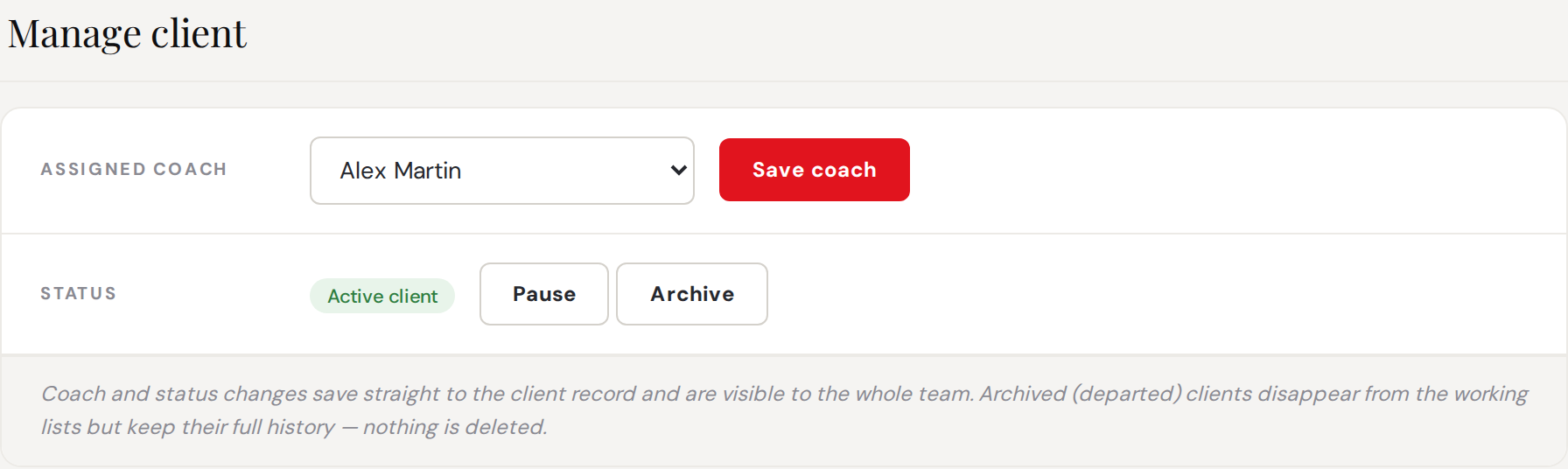
Covering for a colleague? Read the file top to bottom — you'll coach like you've known them for months.
5
Weekly check-ins
Before every
session · ~2 min
session · ~2 min
Automatic
Clients receive their check-in email every week — you send nothing. Submissions land on their file flagged NEW, and mark themselves Reviewed once you've looked.
1
Before each session, open their file. The newest week is expanded — open with their win.

Adjust from data, not memory
Watch for: 2 weeks of poor sleep · sliding compliance · rising waking HR
6
Log advice as a recommendation
Whenever you give
advice · 30 sec
advice · 30 sec
1
Client file → + Add recommendation.
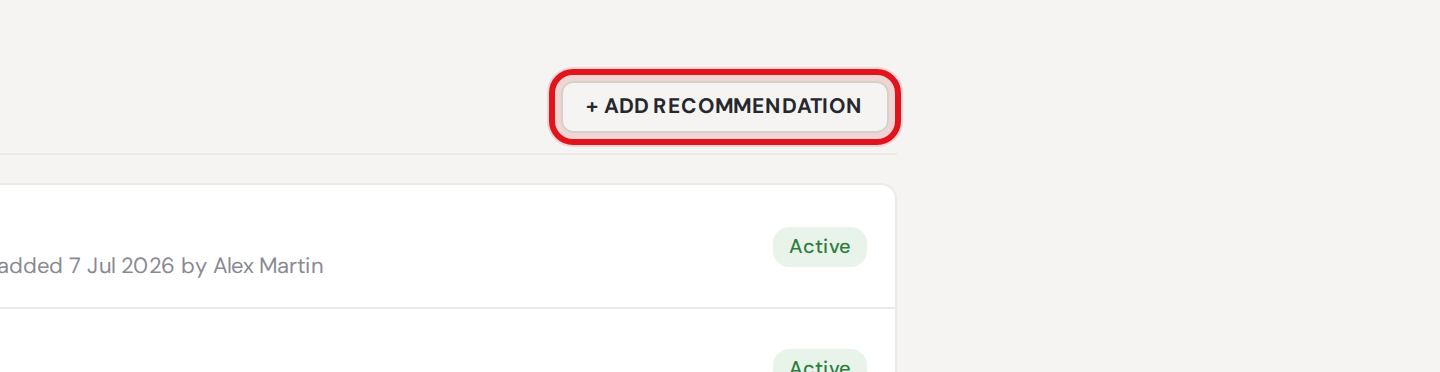
2
Category, advice, save. Nutrition, lifestyle or supplement — written the way you said it.
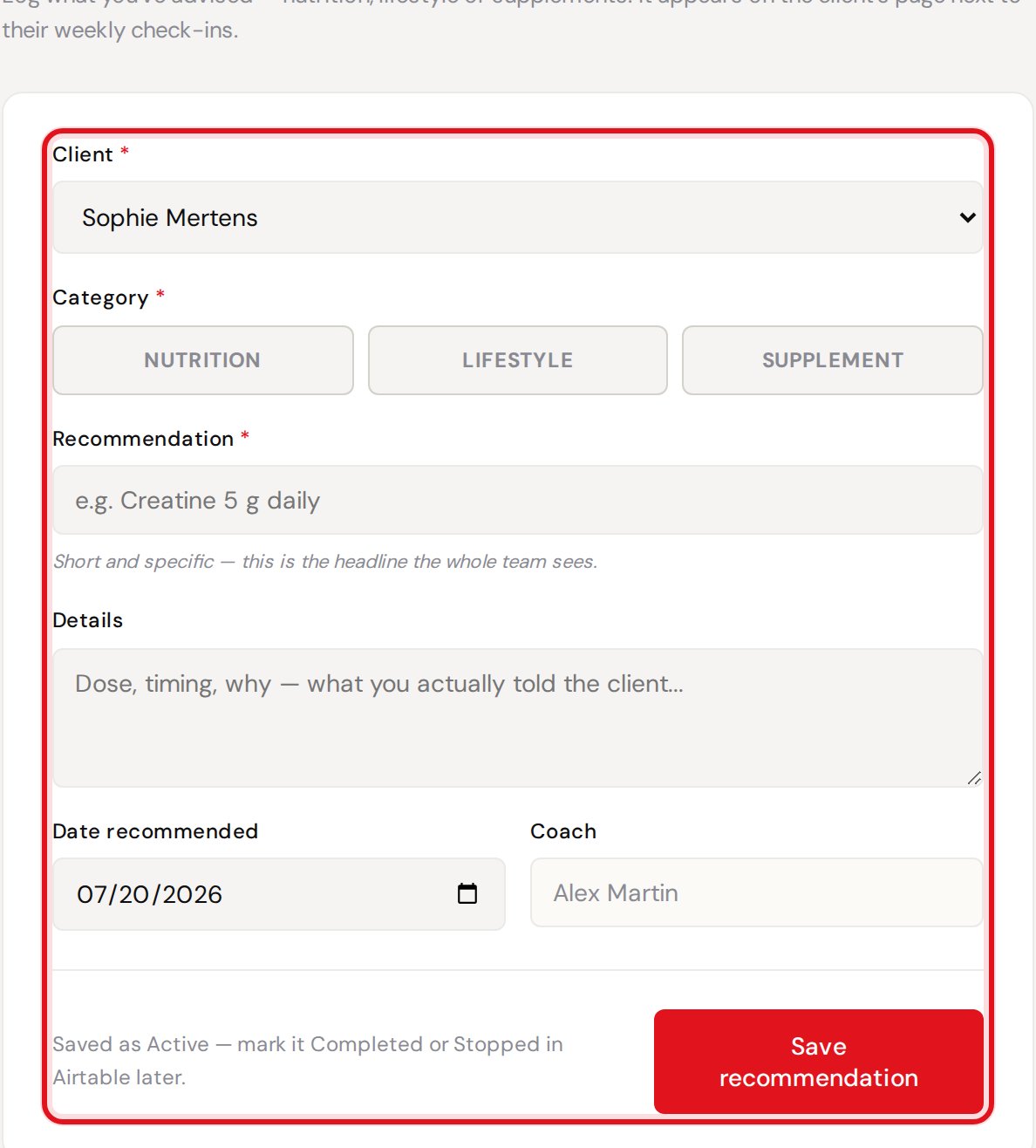
If it isn't on the file, the team can't back you up. Mark it Completed when the habit sticks.
7
Handover before leave
Before holidays
or absence
or absence
1
Coach handover → New handover.
Fill the squad sheet
Dates · who covers · a line per client. Tell your clients, tick “clients informed”.
Automatic
Handovers stay visible until a week after you're back, then hide themselves.
8
Physio hub
Physio-capable
coaches
coaches
1
Physio → Add new patient. Physio patients stay separate from coaching clients.
Run a pathology assessment
Ankle & knee live · more on the way
Never your job
The system handles all of this
- Sending the pre-assessment on booking
- Creating and linking client files
- Scoring the 17 symptom clusters
- Activating & assigning on submit
- Marking things Reviewed
- New-client emails to coach, Dan & Jen
- Weekly check-in emails to clients
- Filing check-ins, flagged NEW
DO IT FOR YOU.